ALL IN ONE WEBSITE !!

const entries = $json.body.entry || [];
let results = [ ];
for (const entry of entries) {
const messagingEvents = entry.messaging || [ ];
for (const event of messagingEvents) {
results.push({
sender_id: event.sender?.id || null,
recipient_id: event.recipient?.id || null,
message_text: event.message?.text || null,
timestamp: event.timestamp || Date.now()
});
}
}
return results.map(r => ({ json: r }));
Overview
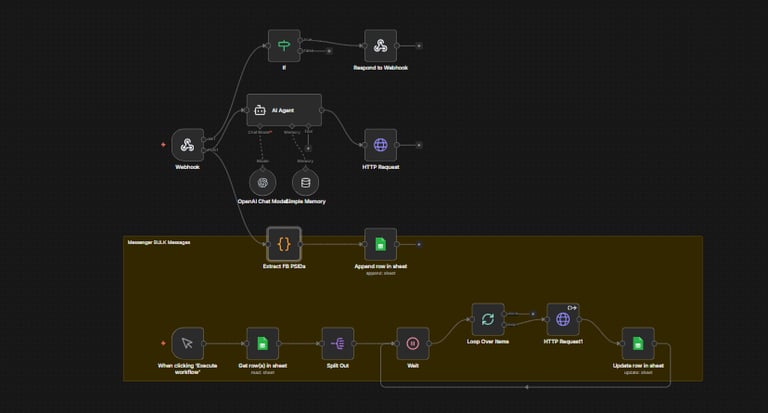
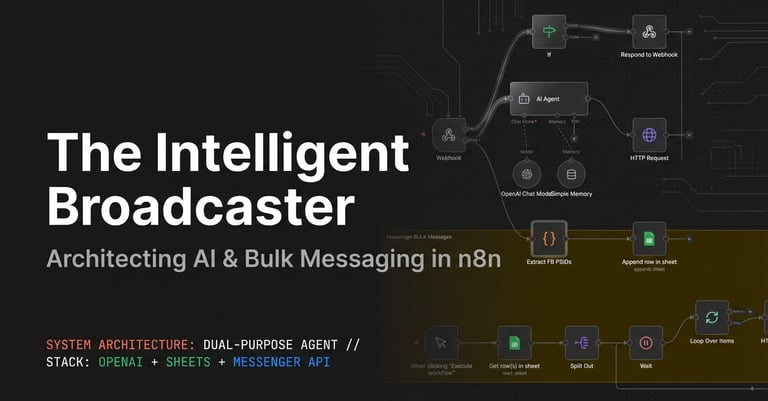
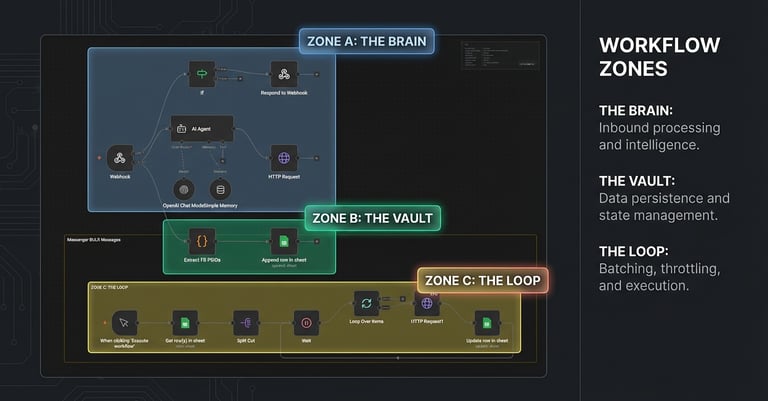
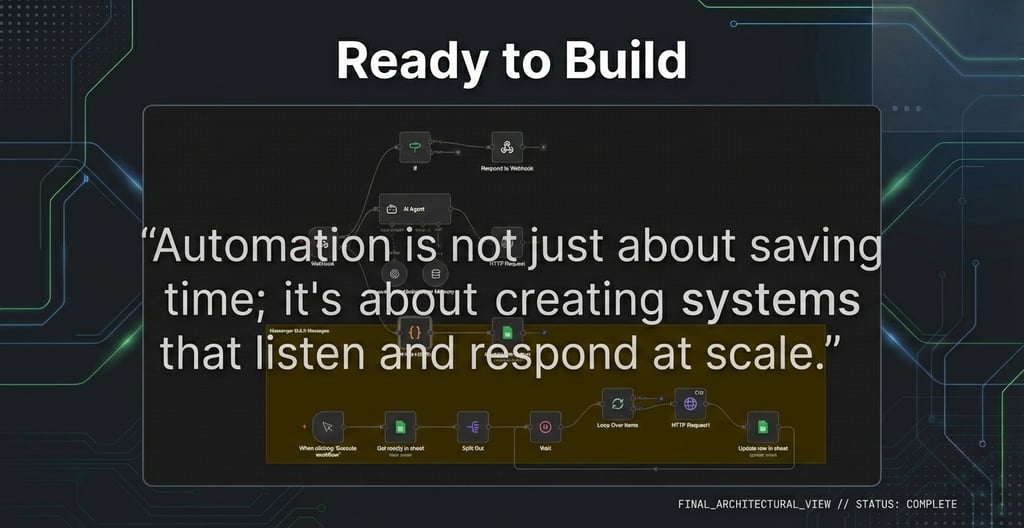
The Intelligent Broadcaster is a dual-purpose automation system built on n8n that combines AI-powered conversations with bulk messaging capabilities. The system operates through two distinct but integrated workflows:
Broadcast Flow (Bottom path) - Sends bulk messages to contacts
Conversational Flow (Top path) - Handles incoming messages with AI responses
Technology Stack:
n8n: Workflow automation and orchestration
OpenAI API: AI agent with chat capabilities and memory
Google Sheets: Contact database and message logging
Facebook Messenger API: Message delivery and webhook handling
First Workflow (Inbound AI Responses)
The conversational flow handles incoming messages from users who reply to your broadcasts or initiate conversations. This is where the AI agent provides intelligent, context-aware responses.
Receive Webhook - "Webhook"
What happens: Facebook sends an HTTP POST request to your n8n webhook URL whenever a user sends a message to your page.
Webhook URL format: https://your-n8n-instance.com/webhook/messenger-bot
Webhook setup requirements:
Configure in Facebook Developer App settings
Set callback URL (your n8n webhook)
Provide verify token (for initial setup)
Subscribe to events: messages, messaging_postbacks
Webhook payload structure:
{
"object": "page",
"entry": [{
"messaging": [{
"sender": { "id": "USER_PSID" },
"recipient": { "id": "PAGE_ID" },
"timestamp": 1675123456789,
"message": {
"mid": "MESSAGE_ID",
"text": "Hello, I have a question"
}
}]
}]
}
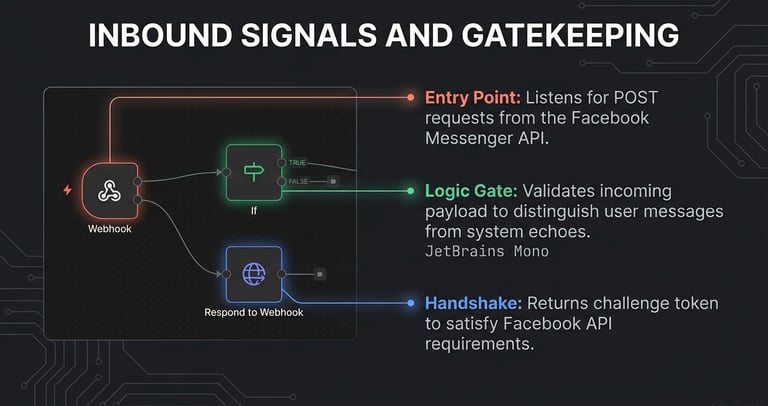
"Respond to Webhook"
AI Agent Processing - "AI Agent"
What happens: This is the intelligence center where OpenAI's language model generates a contextual, personalized response to the user's message.
Two integrated components:
A) OpenAI Chat Mode
Model selection: Typically uses GPT-3.5-turbo (cost-effective) or GPT-4 (higher quality).
System prompt: You configure the AI's personality and behavior:
You are a helpful customer service assistant for [Company Name]. You should: - Be friendly and professional - Answer questions about products and services - Escalate complex issues to human agents - Keep responses concise (under 300 characters for Messenger) - Never share personal customer data
How it processes:
Receives the user's message text
Accesses the system prompt (defines behavior)
Retrieves conversation history from memory (see below)
Generates a contextually appropriate response
Returns the response text to n8n
Input example:
User message: "What are your hours?" System prompt: "You are a helpful assistant for Joe's Coffee Shop..." Previous context: [User asked about coffee types 5 minutes ago]
Output: "We're open Monday-Friday 7am-7pm, and Saturday-Sunday 8am-6pm! Would you like to know anything else about our coffee options?"
B) Simple Memory
What it does: Maintains conversation history for each user across multiple messages.
How memory works:
Uses the sender's PSID as a unique identifier
Stores previous messages from that user
Retrieves relevant context when generating responses
Enables multi-turn conversations that reference earlier exchanges
Memory structure (conceptual):
javascript { }
{ "PSID_1234": { "messages": [ {"role": "user", "content": "What coffee do you have?"}, {"role": "assistant", "content": "We have espresso, latte, cappuccino..."}, {"role": "user", "content": "What are your hours?"}, // Current message ] } }
Why memory is crucial: Without memory, this happens:
User: "Do you have oat milk?" AI: "Yes, we offer oat milk!" User: "Great, what are your hours?" AI: "We're open 7am-7pm. How can I help?" [No context it just discussed oat milk]
With memory:
User: "Do you have oat milk?" AI: "Yes, we offer oat milk!" User: "Great, what are your hours?" AI: "We're open 7am-7pm. You can get your oat milk latte anytime during those hours!" [References previous context]
Memory management:
Memories are stored per PSID
Can be configured to remember X previous messages (e.g., last 10 exchanges)
Older messages are pruned to manage token costs
Memory can be manually cleared or reset
Token consumption: Each AI request consumes tokens based on:
System prompt length
Current message
Conversation history from memory
Generated response
Example: A conversation with 10 previous exchanges might consume 500-1000 tokens per response.
Extract Response - "Extract FB PSIDs"
What happens: Parses the webhook's output and extracts the clean response text that should be sent to the user.
The Webhook node returns a structured object with metadata,
not just the text. This node extracts only what's needed.
{ } Extract FB IDs
Log Conversation - "Append row in sheet"
What happens: Creates a new row in Google Sheets logging both the user's message and the AI's response.
What gets logged:
Timestamp: When the conversation occurred
User PSID: Identifier
Page ID: If available from Facebook
User message: What they sent
Send AI Response - "HTTP Request"
What happens: Sends the AI-generated response back to the user via the Messenger Send API.
Request structure:
json
{
"recipient": {
"id": "{{ $('Webhook').item.json.body.entry[0].messaging[0].sender.id }}"
},
"messaging_type": "RESPONSE",
"message": {
"text": "{{ $json.output }}"
}
}
Second Workflow (Bulk Messages)
Manual Trigger - "When clicking Execute workflow"
What happens: You manually initiate the broadcast by clicking the execute button in the n8n interface.
Why it's manual: This prevents accidental mass messaging and gives you complete control over when broadcasts are sent. You can choose optimal timing for your campaigns (e.g., avoiding late nights or weekends).
Technical detail: This is an n8n manual trigger node that starts the workflow execution.
Retrieve Messenger IDs- "Get row(s) in sheet"
What happens: The workflow connects to your Google Sheets spreadsheet and retrieves all rows containing contact information.
What's in the sheet: Your Google Sheet typically contains:
Facebook Page-Scoped ID (PSID) - unique identifier for each
"Split Out"
What happens: The node takes the bulk data (array of all IDs) and converts it into individual items, with each ID becoming a separate execution item.
Why this matters: Instead of processing all IDs simultaneously, each ID flows through the workflow independently. This transformation is necessary for the next step (looping).
Sequential Processing - "Loop Over Items"
What happens: This node processes IDs one at a time in sequence, ensuring each Messenger ID receives the message before dragging the next.
Why sequential (not parallel):
Rate limiting: Prevents overwhelming the Messenger API
Error tracking: Makes it easy to identify which contact caused an error
API compliance: Facebook's rate limits are easier to manage with sequential sending
Deliverability: Reduces risk of being flagged as spam
Rate Limiting - "Wait"
What happens: The workflow pauses for a specified duration (typically 5 seconds) before processing the next messanger ID.
Why the delay:
API rate limits: Facebook doesn't publish exact limits, but excessive messaging triggers blocks
Natural pacing: Mimics human sending patterns, reducing spam detection
Server load: Prevents overwhelming your own n8n instance or the Messenger API
Deliverability: Better delivery rates with controlled sending
Send Message - "HTTP Request"
What happens: Makes an HTTP POST request to Facebook's Messenger Send API to deliver the message to the recipient.
API endpoint: https://graph.facebook.com/v12.0/me/messages
Request structure:
json
{
"messaging_type": "MESSAGE_TAG",
"tag": "CONFIRMED_EVENT_UPDATE",
"recipient": { "id": "{{ $json.sender_id }}" },
"message": { "text": " message " }
}
Log to Database - "Update row in sheet"
What happens: Updates rows in Google Sheets with information about the message that was just sent.
What gets logged:
Status: "Sent",
After logging: The workflow loops back to Step 4 to process the next contact.
After logging: The workflow loops back to the "Loop Node" to process the next Messanger ID
Download the Workflow Template FOR FREE 👇👇